Website CMS Kit

Try the admin in your browser

A working demo of the kit's admin: invite-only sign-in with two-factor, a posts list with search and filters, a rich-text editor with autosave, staging and approval with a preview of the whole site, media, team, redirects and a full audit log.

Open the interactive demo

The sign-in form is pre-filled and any password works. The two-factor code is 123456.

Sample data only. The demo runs entirely in your browser. Everything you see is invented, it is saved only in this browser's local storage, and nothing is sent anywhere: there is no server, no database and no real account. The production version of every screen is the Next.js and Supabase code in the source tree on GitHub.

What it looks like
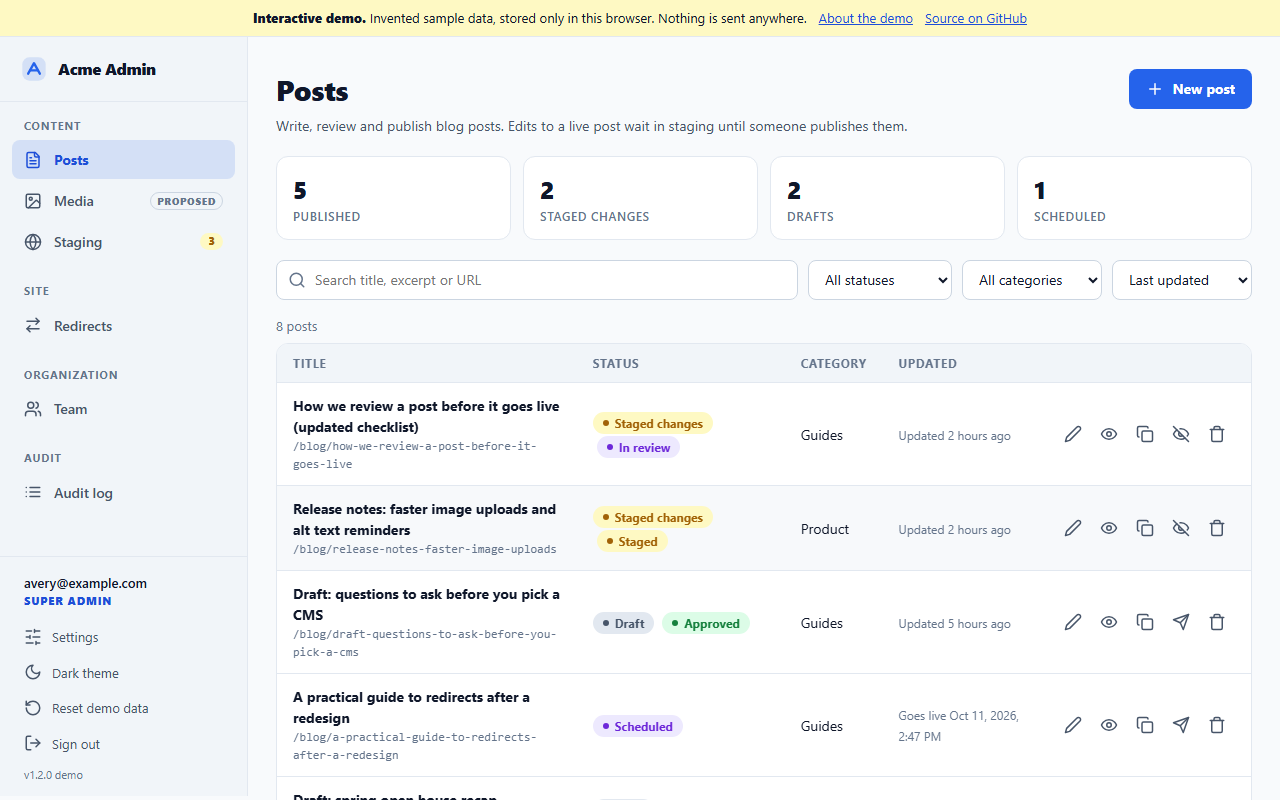
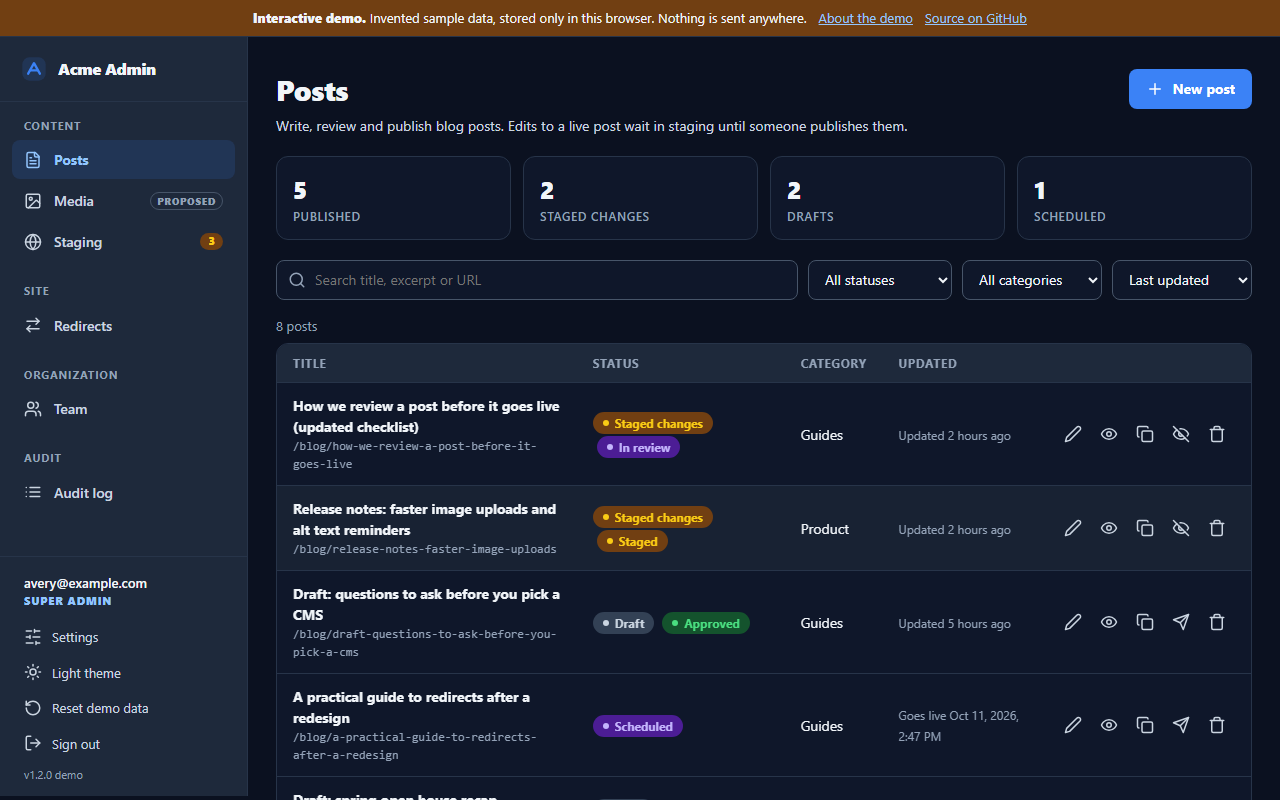
The posts list: status counts, search, status and category filters, sort, and a table of posts with status chips and row actions.
Posts. Search, filter by status or category, sort, and act on a row: edit, preview, duplicate, publish or unpublish, delete.
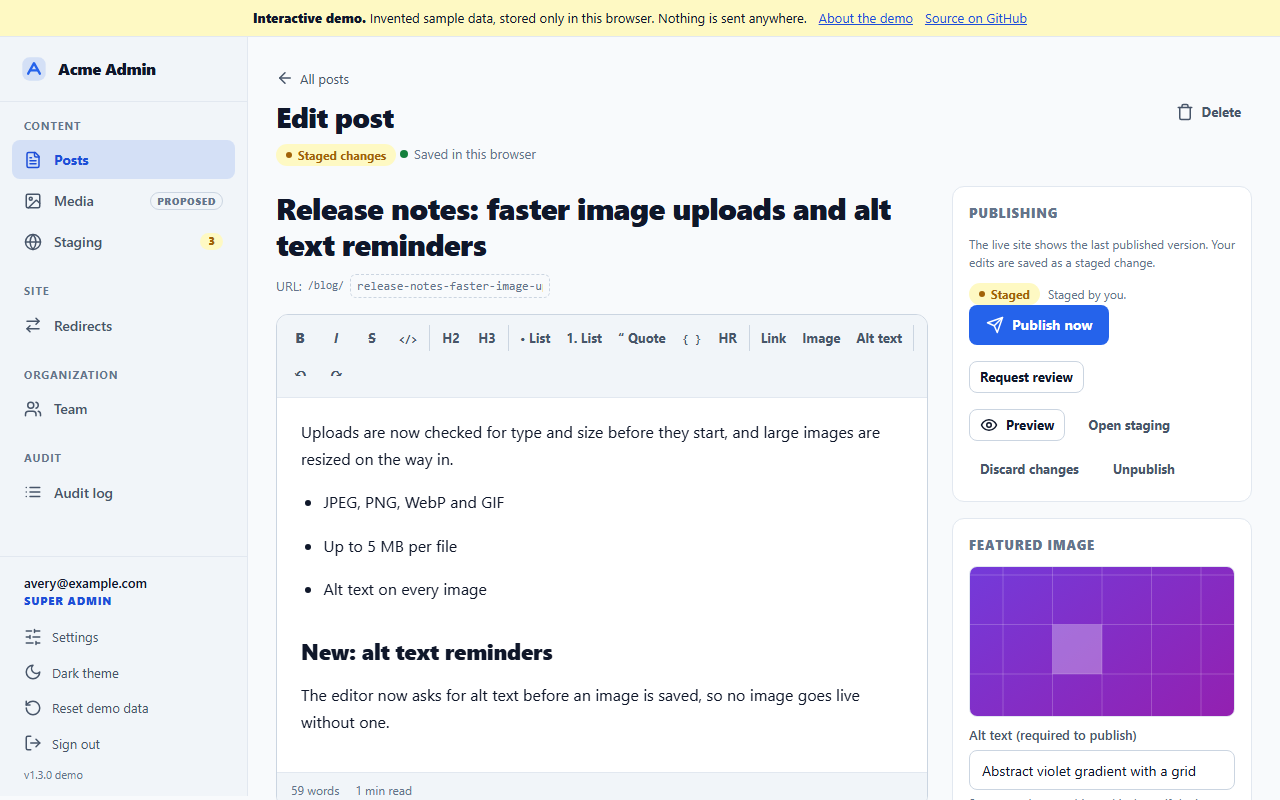
The post editor on a live post with staged changes: a large title, a URL slug, a formatting toolbar with strike, inline code, code block, divider and Alt text buttons, the rich-text body, a publishing panel with Publish now and Request review, and a featured image with its required alt text.
Editor. A real TipTap rich-text editor with autosave. Edits to a live post are saved as a staged copy; the public site keeps showing the live version until someone publishes.
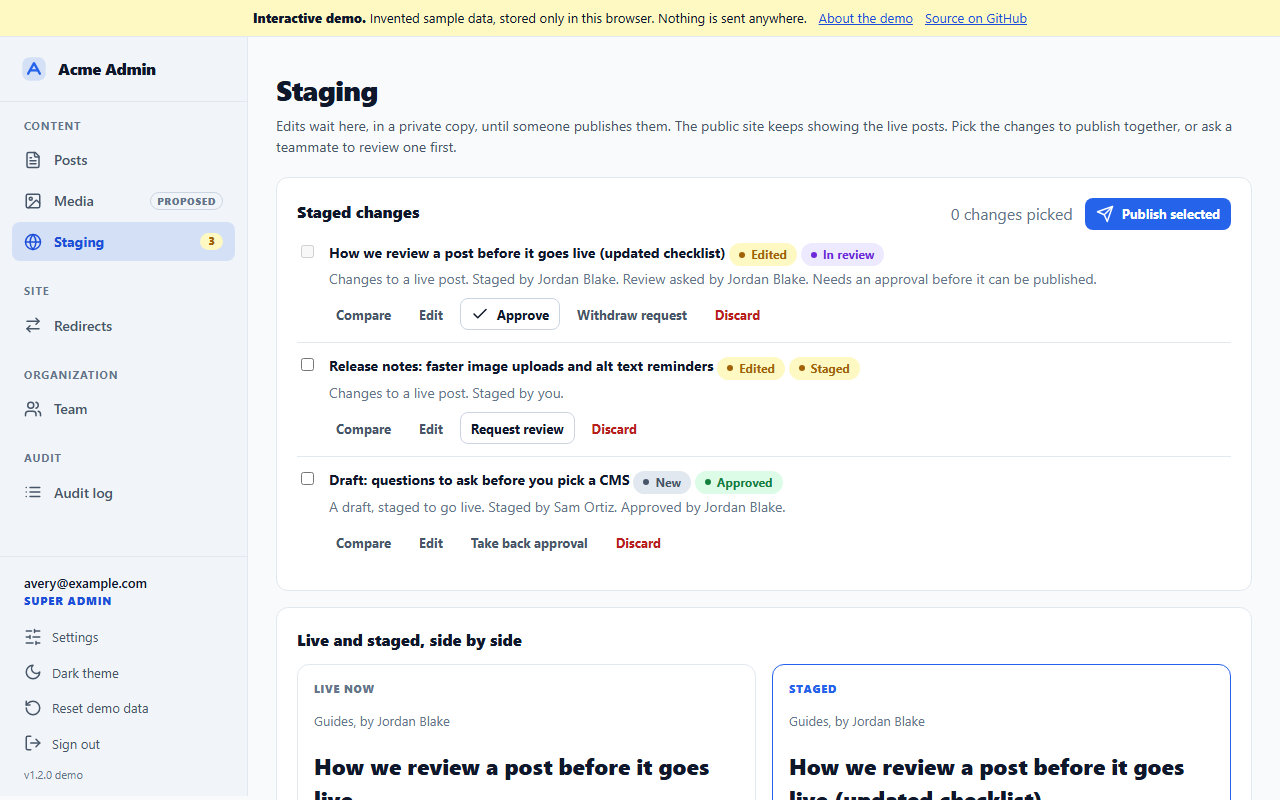
The staging page: a list of staged changes with checkboxes, Edited, New, Staged, In review and Approved labels, Compare, Request review, Approve and Discard buttons, Publish selected, and the live and staged versions side by side.
Staging. Every staged change in one place. Ask a teammate to review one, approve theirs, compare live and staged side by side, then publish just the changes you pick.
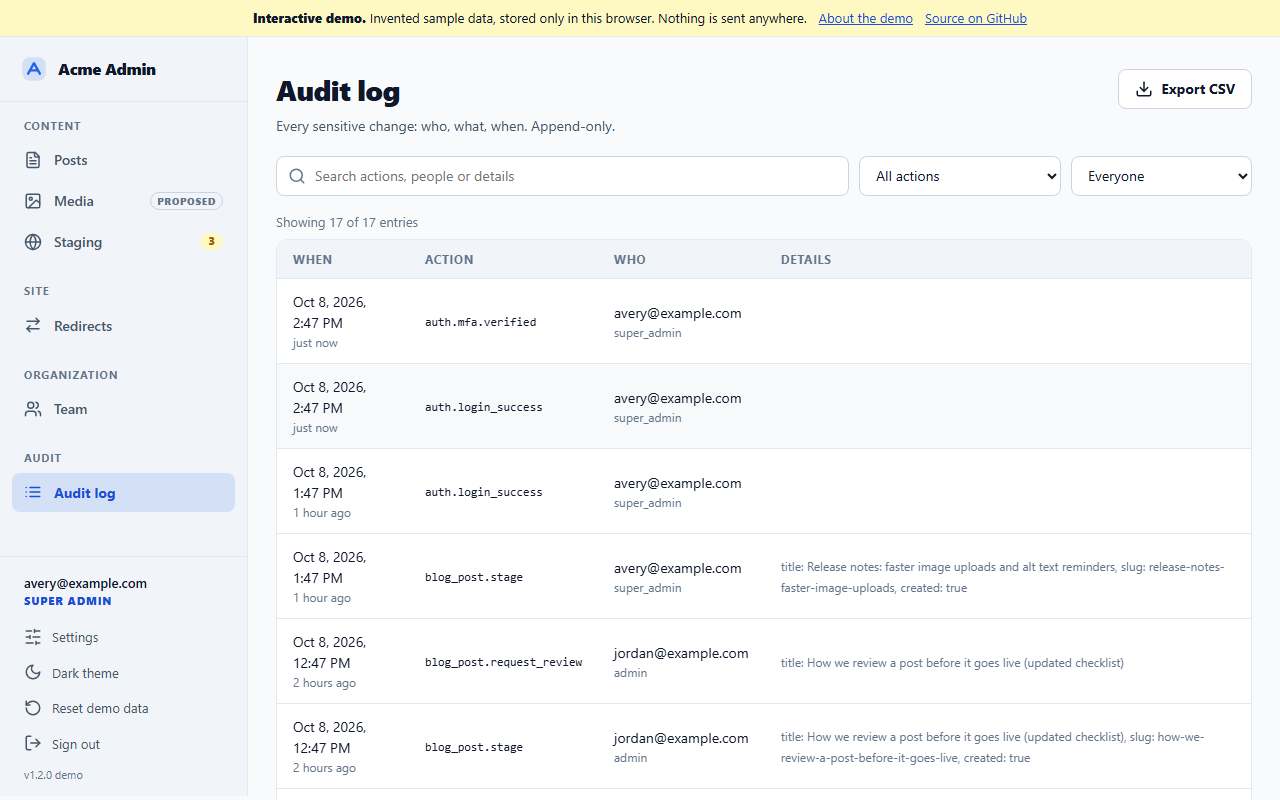
The audit log: a filterable table of every sign-in, publish, team and redirect change, with an export button.
Audit log. Every sensitive action, who did it and when, filterable and exportable to CSV.
The posts list in the dark theme.
Dark theme. Follows your system setting until you pick one; every color comes from one set of design tokens.
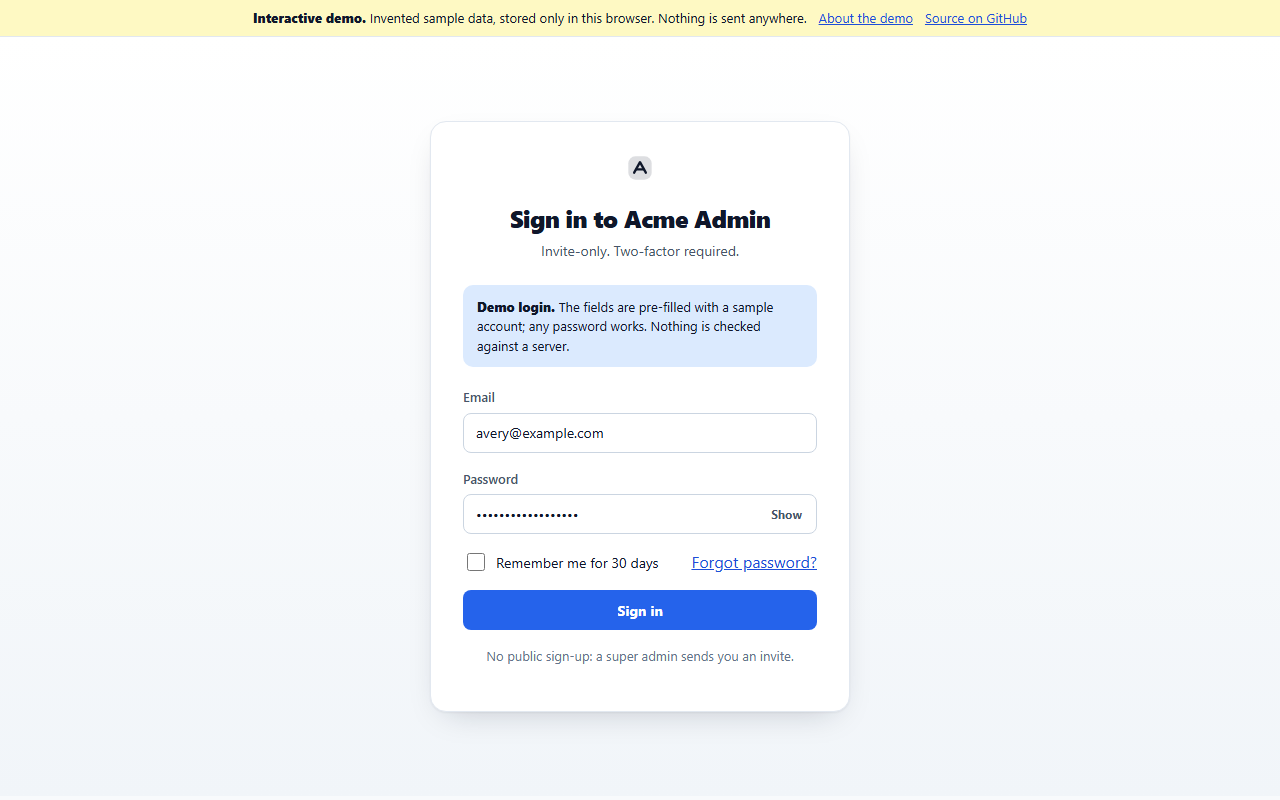
The sign-in screen, labeled as a demo login, with email, password, remember me and forgot password.
Sign-in. Invite-only, with a two-factor step and recovery codes. Here it is clearly labeled as a demo login.

On a phone

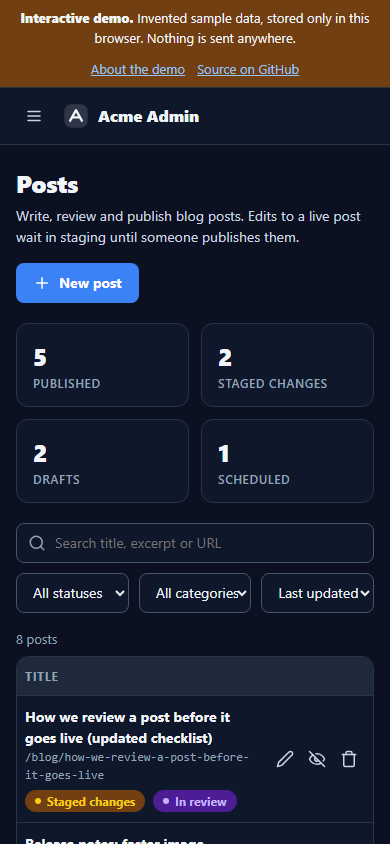
The posts list on a phone in the dark theme, with a menu button, stacked filters and compact rows.
Posts, dark theme.
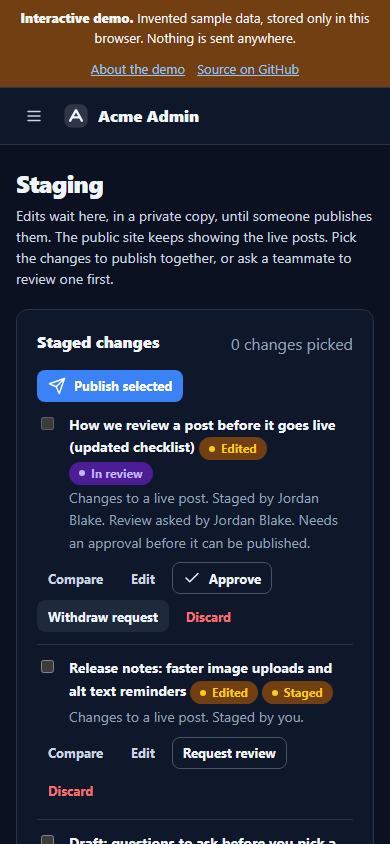
The staging page on a phone in the dark theme, with the staged changes stacked and their buttons wrapping under each title.
Staging, dark theme.
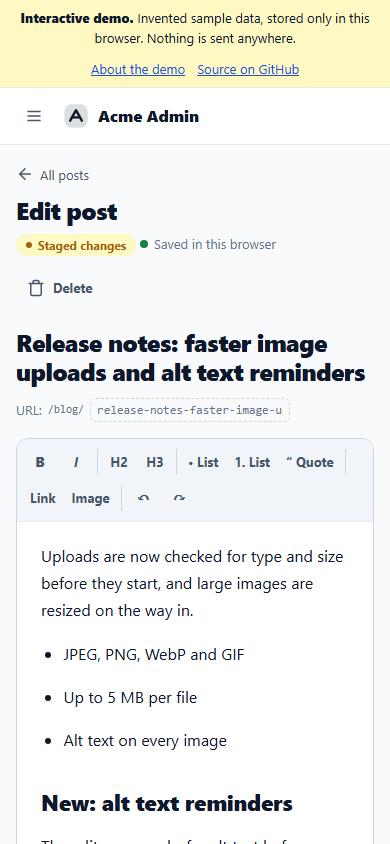
The editor on a phone: the title wraps, the toolbar wraps onto two rows above the body text.
Editor, light theme.

A five-minute walkthrough

  1. Sign in. Press Sign in, then enter 123456. (The two-factor step also shows a sample recovery code: using one turns two-factor off and sends you to set it up again, the same as the real kit.)
  2. Edit a live post. Open "Release notes: faster image uploads and alt text reminders". Change a heading, add a link, insert an image. The live site keeps the published version; your edit is a staged change, and the "Saved in this browser" note shows autosave working.
  3. Ask for a review. Press Request review. You cannot approve your own change, so the demo offers "Demo: approve as" a teammate (in the kit, the teammate signs in and approves it). "How we review a post before it goes live" is waiting for your approval: approve it from the editor or the Staging page.
  4. Preview before anyone else sees it. Open Staging. Press Compare to see the live and staged versions side by side, then flip the whole site between Live site and Staging.
  5. Publish. Tick the changes you want and press Publish selected, or use Publish now in the editor. A change still in review cannot be published until someone approves it. You can also schedule a post for later.
  6. Media. Open the media library (new in 1.5.0): each image shows whether it is private or public, which posts use it and its alt text, and an image in use cannot be deleted. In the editor, pick an image another post uses: its alt text is offered and nothing is uploaded twice.
  7. Team. Invite someone, change a role, turn someone's access off. Try to demote the last super admin: the kit refuses.
  8. Audit log. Every step above is there, with who, what and when. Filter it and export a CSV.
  9. Redirects. Add a redirect, then try the proposed tester: test a path against your rules and see loops and chains caught before they ship.
  10. Start over. "Reset demo data" in the sidebar puts everything back.

In the kit today, and what is proposed

Most of the demo mirrors code that is in the kit's source today. A few screens preview features that are proposed but not built yet; the demo marks each one Proposed.

In the kit todayInvite-only sign-in, two-factor and recovery codes, posts with drafts, scheduling, a per-post preview and local autosave, the rich-text editor, image upload, staged edits on live posts with request review and approve, the staging page with compare and publish-selected, team management, the audit log with CSV export, redirects, and the media library.
Proposed, shown in the demoResending or cancelling an invite, and the redirect tester with its extra checks.
Demo-only helpersThe light and dark theme switch (the kit documents how to add it), viewing the admin as another role, approving as a teammate, and reset demo data.

What the real kit adds

Three security layersA proxy that checks the session, a server gate on every page and action, and Postgres row-level security as the final word.
Real accountsSupabase Auth with invite-only sign-up, TOTP two-factor, bcrypt-hashed recovery codes and password reset.
Two SQL filesThe first migration stands up the tables, policies, audit log and image bucket on a fresh Supabase project; the second adds staging and approval. The public site never reads a staged row.